
Graduate School
Formatting Page Numbers on Landscape Pages in Microsoft Word (v 16.54) on MacOS
These instructions are for formatting theses/dissertations which have both portrait and landscape pages, with page numbers that must be oriented the same direction.
Resources:
- Insert page numbers as usual for whole document (bottom, center). Make sure text font
and size matches rest of document (12 pt Times New Roman).
- On landscape pages, open the footer (“View” dropdown menu, then select “Header and
Footer”). Under the Header & Footer tab, deselect “Link to Previous”. On the landscape
page, change the font color to white- this will also change every page number below
this page to white, so find the next portrait page, highlight the white page number, deselect “Link to Previous”, and change font
color to black.
- Back on the landscape page: Click “Insert” tab, then “Text Box”, then “Draw Vertical
Text Box”. Type in the number, center it, and change the text to the appropriate font,
size, color (Times New Roman, 12 pt, black). Under the “Shape Format” tab, set the
“Shape Outline” to “No Outline”, and make the size of the text box 0.38” x 0.38”.
- To get the page number centered vertically on the page within the required margins
for landscape pages (Top: 1”, Bottom: 1”, Left: 1”, Right: 1”): select text box, click
on the “Layout” tab, then “Position”, then “More Layout Options…”. Set parameters
as below. (Horizontal position 0.07" to the right of left margin; vertical alignment
centered relative to margin.)
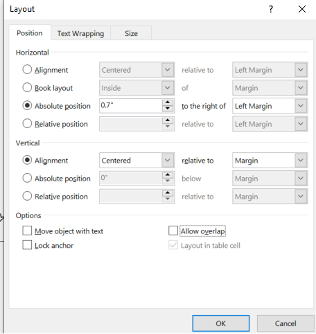
At this point, you should have the page number set correctly for the landscape page you are currently on. To save a lot of time for additional landscape pages, follow additional steps below. - Select vertical text box with page number. Click “Insert” dropdown menu, then “AutoText”,
then “New…”. A popup box as below should come up; you can assign a name if you’d like:
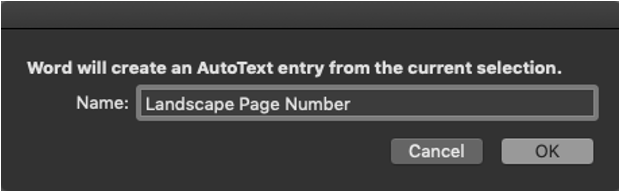
- To add the vertical page number for any additional landscape pages, just go to “Insert”, then “AutoText”, then “AutoText…”, search for whatever you named the entry (“Landscape Page Number”), click “Insert”, and it will automatically insert the vertical text box for the page number with all the correct settings for your document. All you should have to do is type in the correct page number.