
Oral Defense Results Instructions
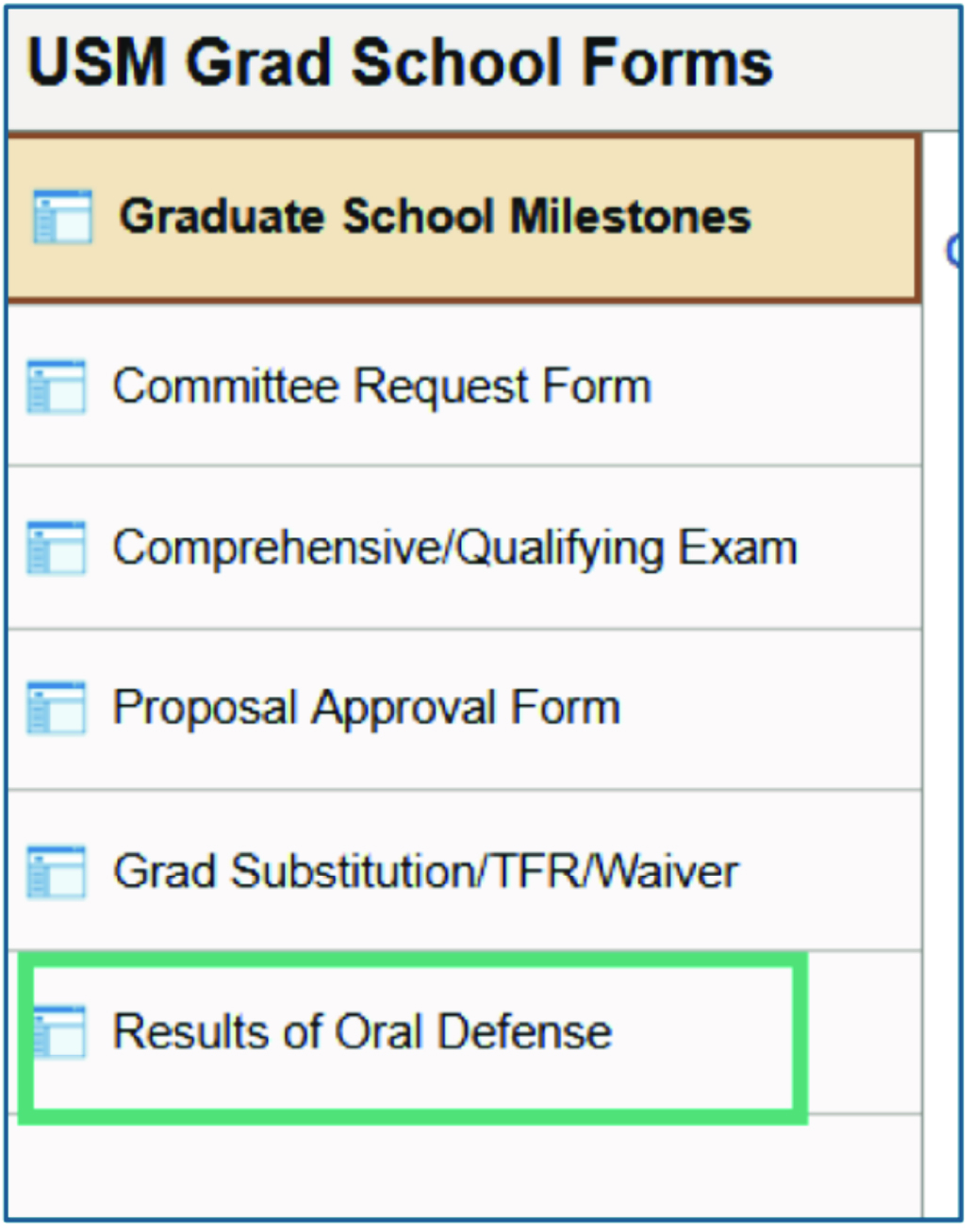
1. SOAR NAVIGATION: From the Faculty Center Home Page click the GRADUATE SCHOOL FORMS tile and select RESULTS OF ORAL DEFENSE.
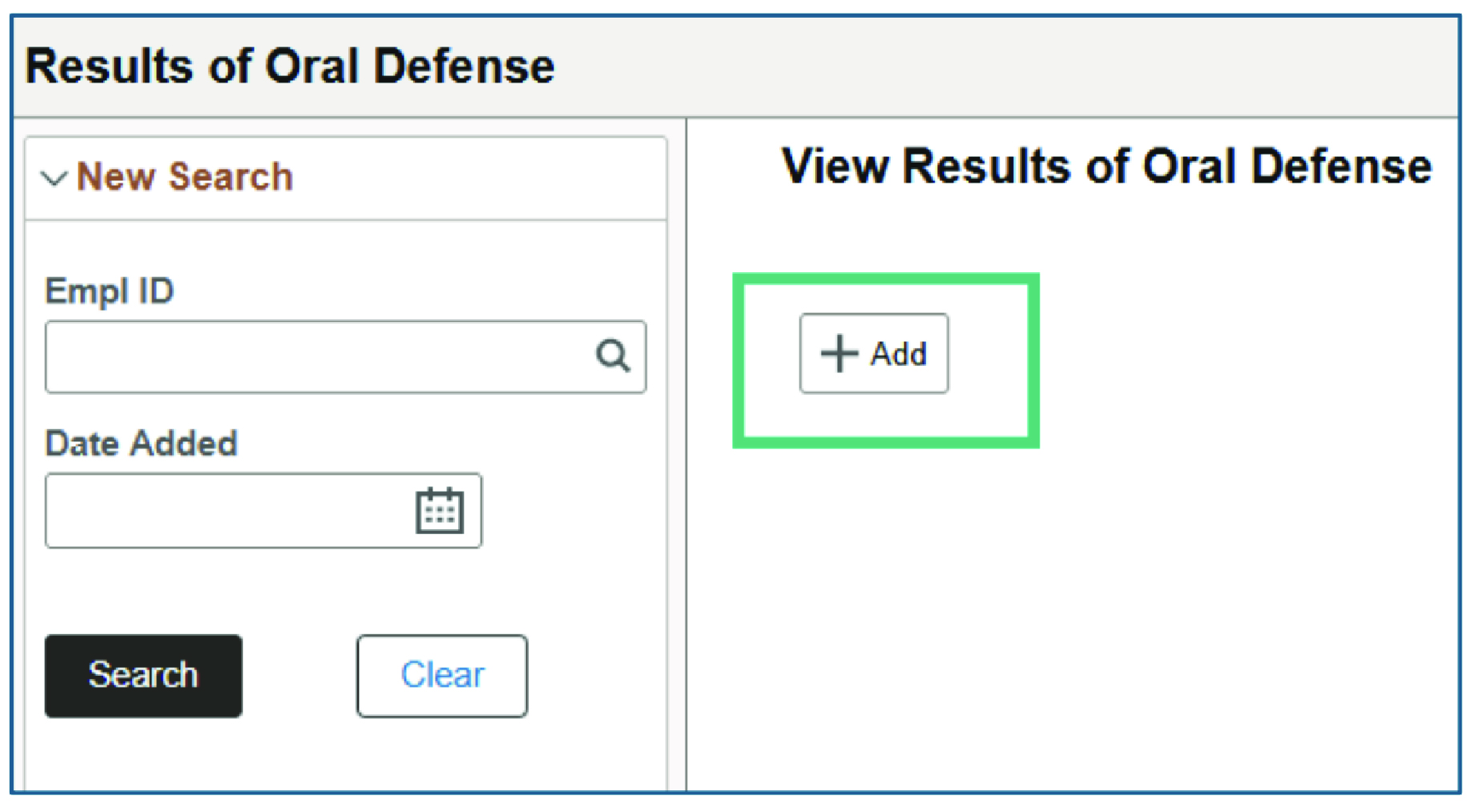
2. Click +ADD.
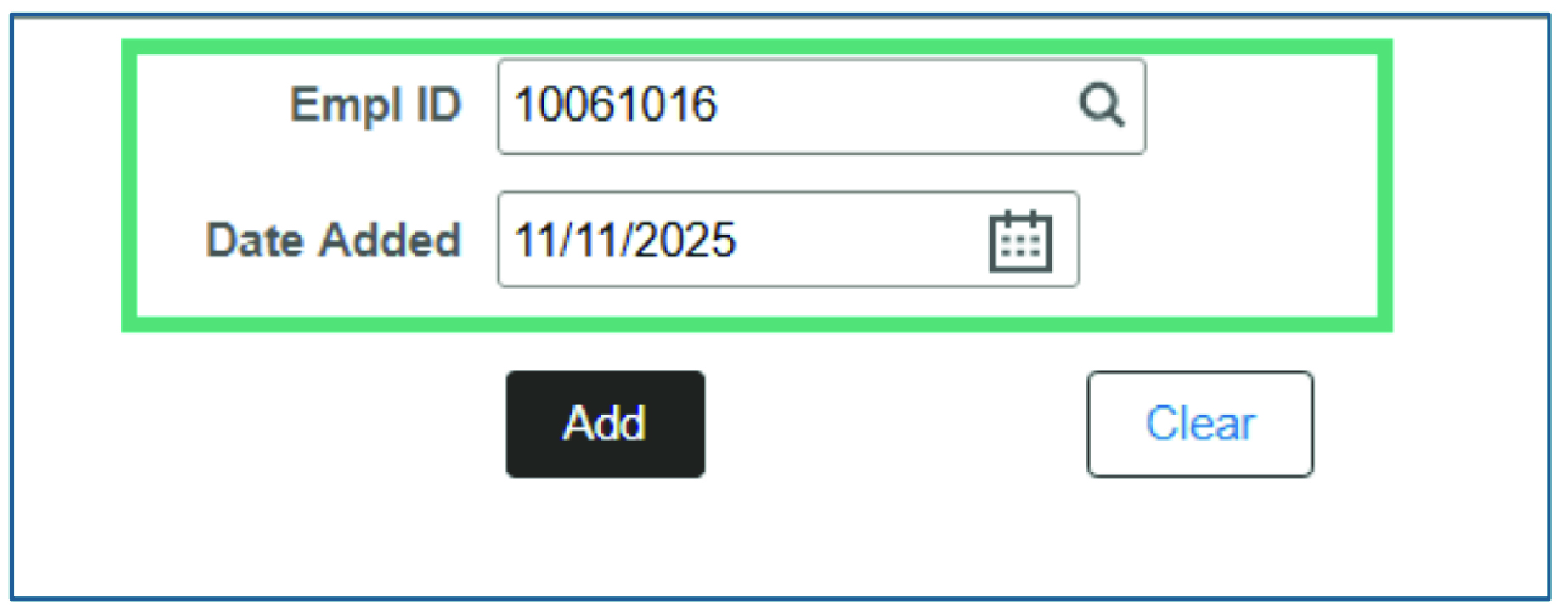
3. Enter the STUDENT ID#, and the DATE of the Oral Defense.
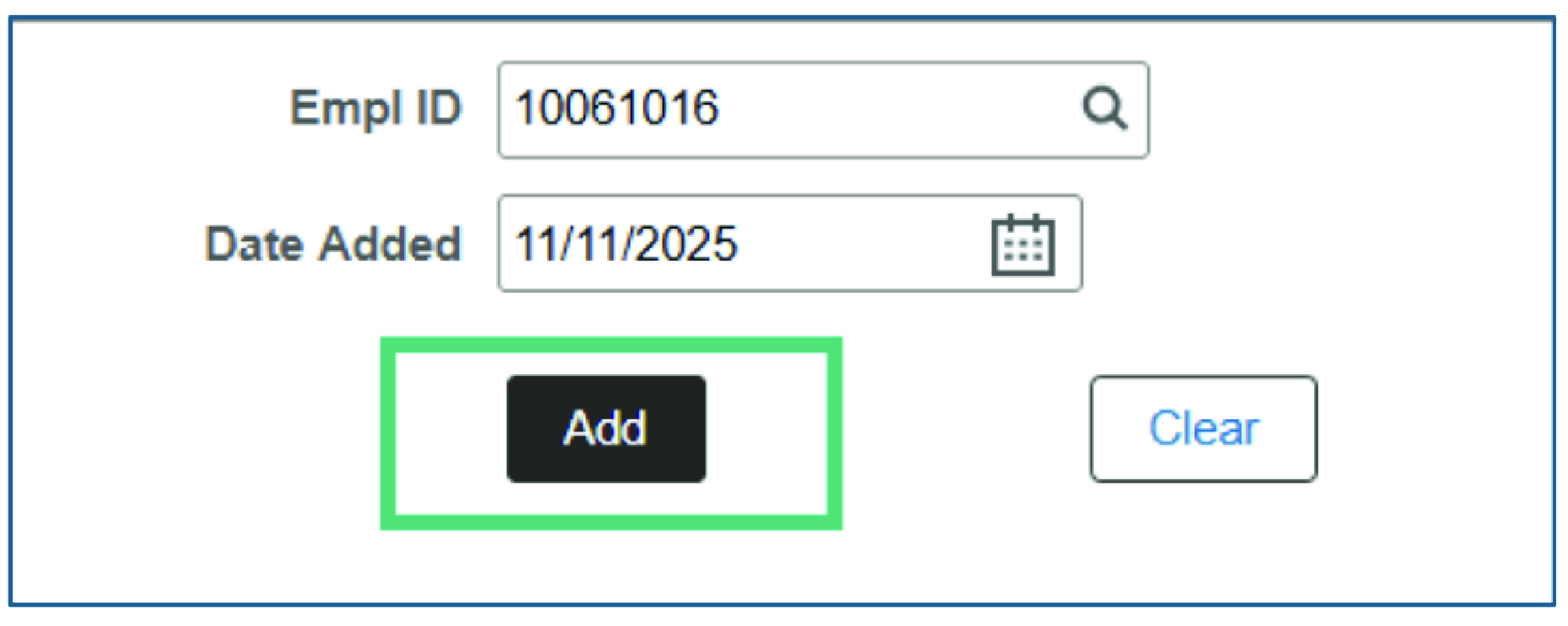
4. Click ADD.
5. The Student’s degree information will automatically populate.
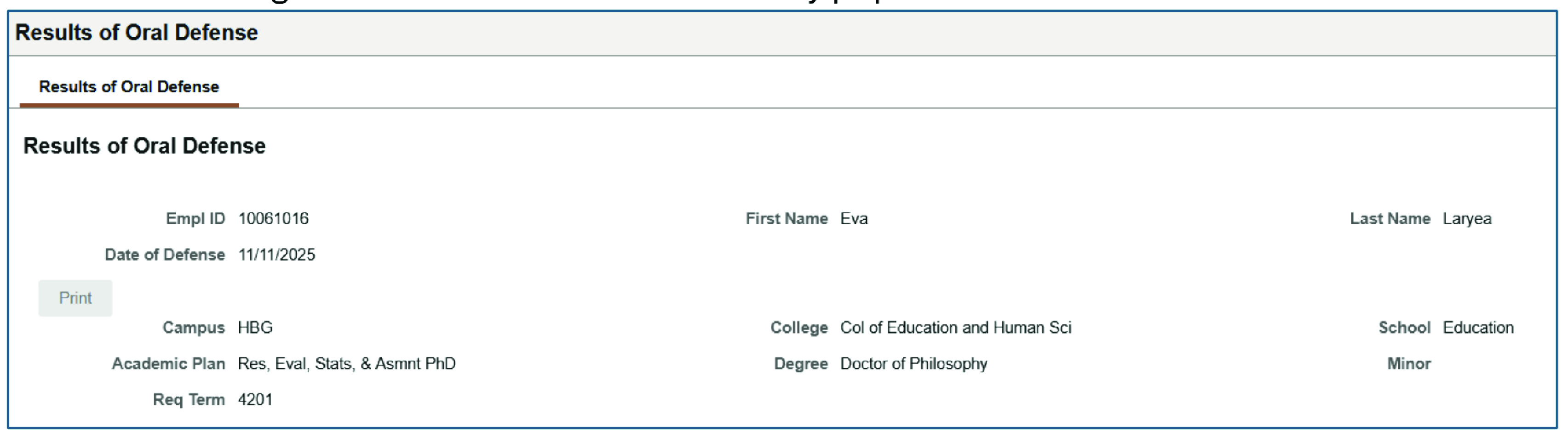
6. Select one of the APPROPRIATE RESULTS OF ORAL DEFENSE OPTIONS (Approved, Approved w/ Revisions, or Not Approved).
| NOTE: If you accidentally select the wrong option, you must cancel the form and start over. |

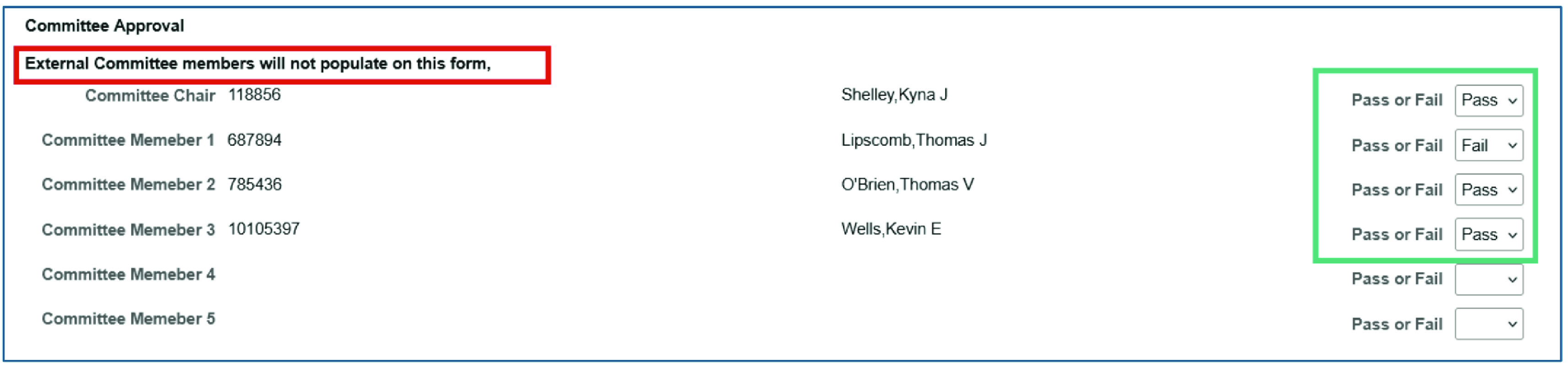
7. Enter the PASS/FAIL OPTION given by each of the Committee Members
|
Note: External Committee Members WILL NOT populate on this list. If no committee members are listed- STOP. There is no Committee Form on file for this student, and one must be submitted before completing the Results of Oral Defense Form. |
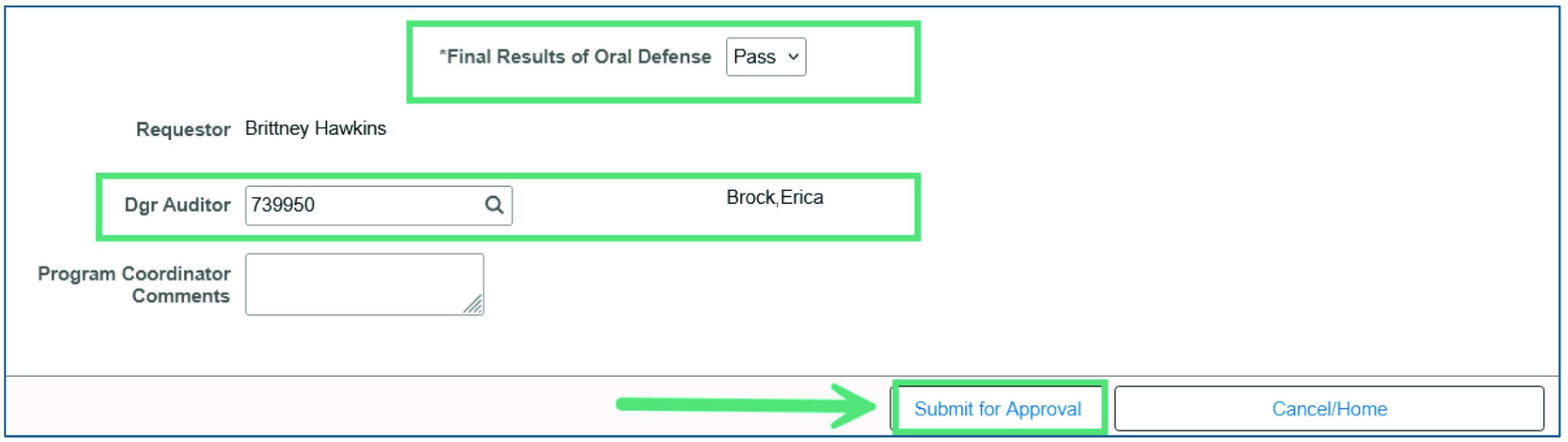
8. Enter the FINAL RESULTS of the Oral Defense (Pass/Fail) and select your DEGREE AUDITOR. You can also include any additional comments if needed.
9. Click SUBMIT FOR APPROVAL.
10. If a Results of Oral Defense has already been submitted for the student, you will
receive an error message.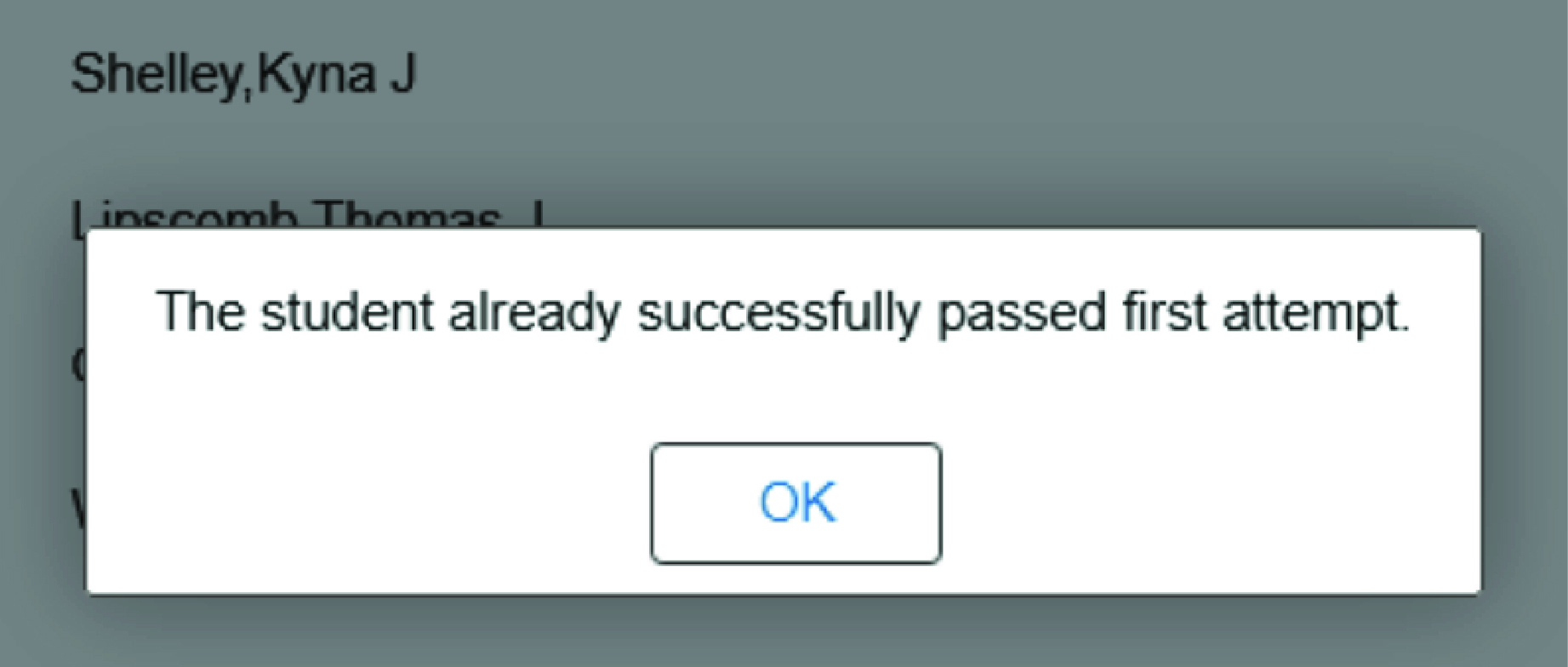
11. If the Graduate Coordinator submits the Form: The Results of Oral Defense will be routed to the Degree Auditor
for Approval.
If someone other than the Program Coordinator submits the Form: The Results of Oral Defense form will be sent to the Program Coordinator’s
WorkList for approval, then routed to the Degree Auditor.
12. Once the Degree auditor receives the form, the Submitter and Graduate Coordinator will receive a confirmation email.