Student Help
Add a Class After the Deadline
Page Content
1. Initial Navigation
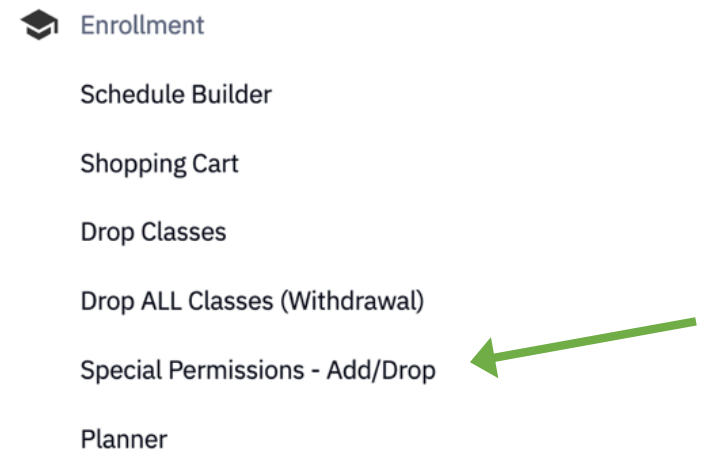
Log in to SOAR and navigate to the Enrollment Menu. Click the Special Permissions - Add/Drop option.
2. Enter Class Information
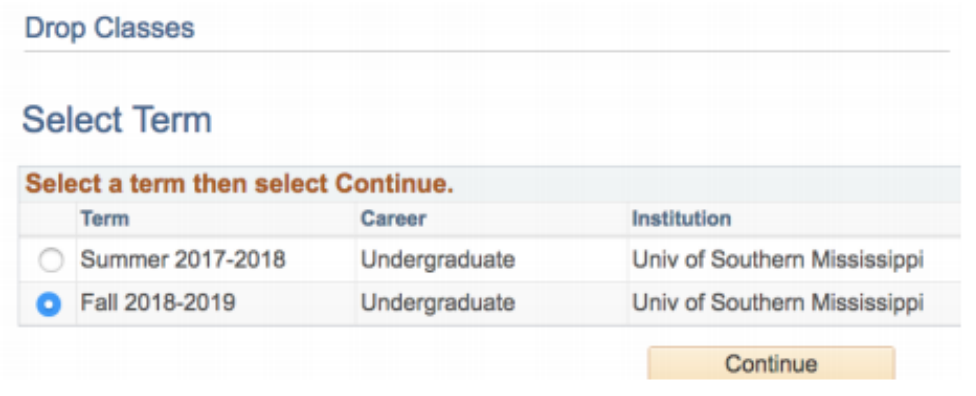
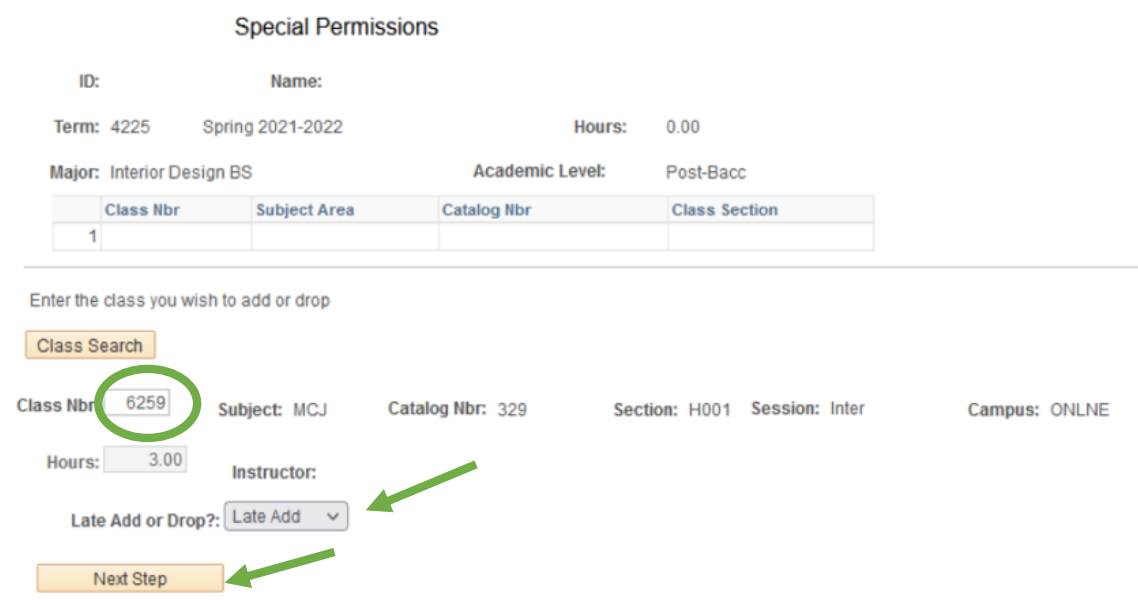
Select appropriate term and click Continue. Enter the class number for the class you'd like to add. Select Late Add and click the Next Step button.
3. Enter Reason for Late Add and Comments
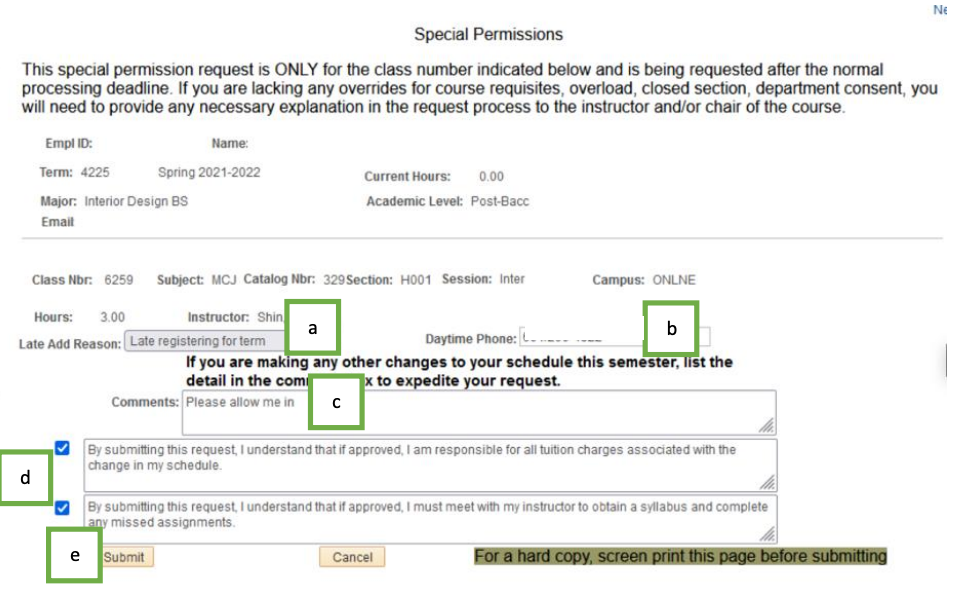
- Provide the reason for your late add.
- Provide a daytime phone number in case of clarifications or questions.
- Provide a comment to the instructor.
- Click the boxes if they meet your approval.
- Click the Submit button.
4. Verification
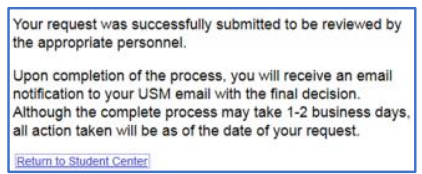
Once submitted, you will receive a verification of submission message with pertinent info. Also, an email is sent only to the instructor of the course. Monitor your student email for requested information and updates.
Don’t assume that a ‘special request’ will be automatically granted. Questions regarding the request should be directed to the instructor of the course.

For emergency assistance, dial 9-1-1. Or view local emergency contacts for police, fire, hospitals, and mental health crises.
To report a broken link or suggest a helpful resource, please email Danielle%20Sypher-Haley.