Student Help
Add a Class from Class Search
Page Content
1. Initial Navigation
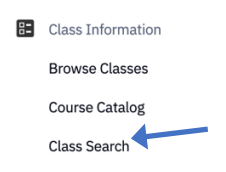
Within SOAR, click the Class Information menu option. Select Class Search.
2. Enter Search Criteria
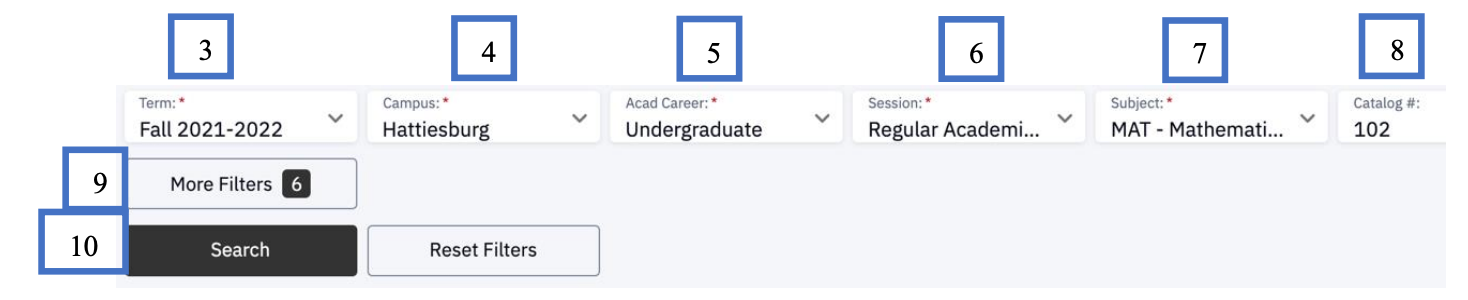
- 3 - Term: Select the appropriate term.
- 4- Campus: Select the campus you wish to attend
- 5 - Acad Career: Select Undergraduate or Graduate
- 6 - Session: Choose the desired session type (regular, 8 week 1, 8 week 2, etc).
- 7 - Subject: Choose the class subject, like ENG for English or MAT for Math.
- 8 - Catalog #: Enter the number, such as 101 if searching for ENG 101.
- 9 - Optional: Click More Filters for more detailed search.
- 10 - Click the Search button.
3. View Results and Enroll
Search results will display below the search.
Optional: You may click on the > for more information about the course, including pre-requisites, instructor name, etc.
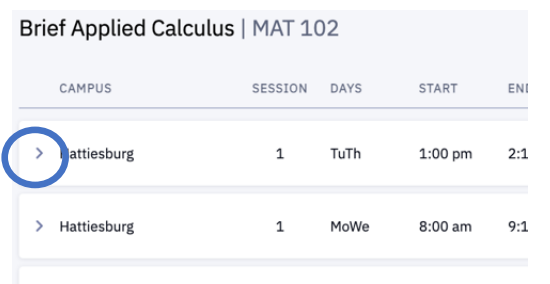
At the bottom-right of the class information, you will have additional options, such as to Enroll, Add to Shopping Cart, Add to Schedule Builder. Choose the function that best fits your needs.


For emergency assistance, dial 9-1-1. Or view local emergency contacts for police, fire, hospitals, and mental health crises.
To report a broken link or suggest a helpful resource, please email Danielle%20Sypher-Haley.