Student Help
Degree Progress Reports
Page Content
1. Initial Navigation
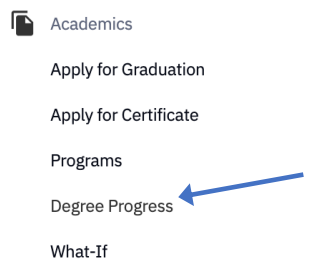
Within SOAR, navigate to the Academics menu. Click Degree Progress.
2. View /Download Overview
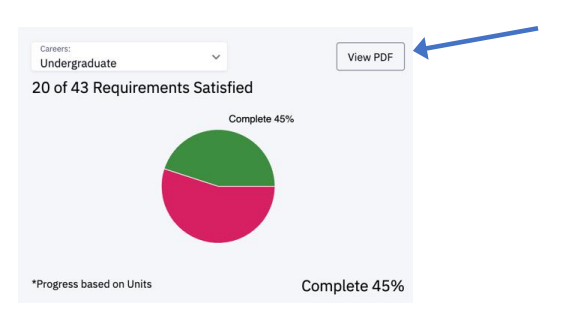
The Overview page will show a pie graph. If you wish to View the PDF format, click the appropriate button.
3. View Unsatisfied Degree Requirements
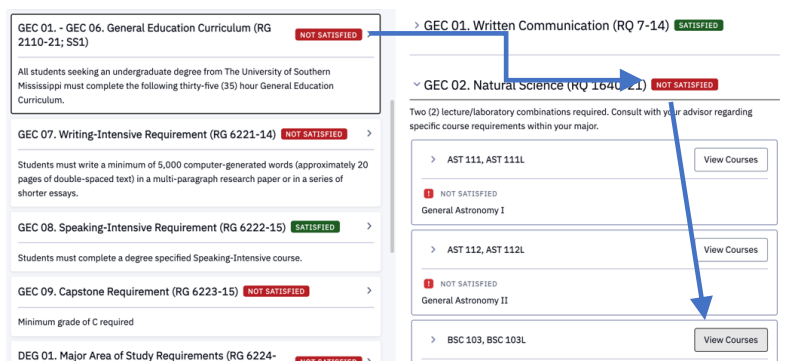
To see what is left of your degree requirements, scroll down and click the NOT SATISFIED indicator. To view more options and details, click on the View Courses button.
4. Pre-requisite and Co-requisite Info
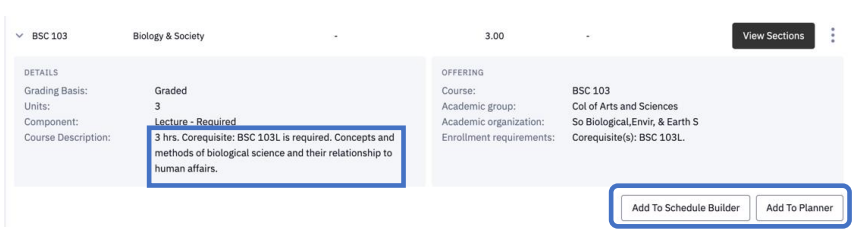
For pre-requisite and co-requisite information click on the > of the course. You can also Add to Schedule Builder and Add to Planner from this panel.
5. Enroll, Add to Cart, Add to Planner, or Add to Schedule Builder
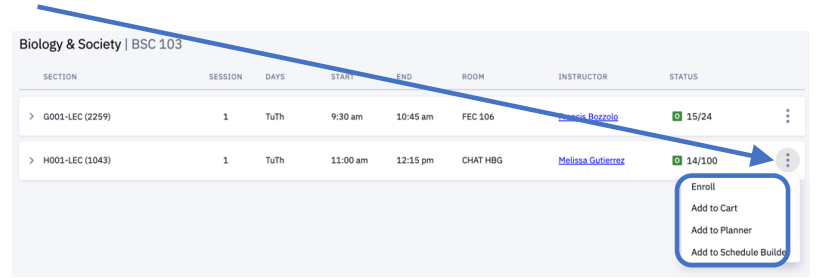
Use the three-dot hamburger menu to the right of the class to select to Enroll, Add to Cart, Add to Planner, or Add to Schedule Builder.

For emergency assistance, dial 9-1-1. Or view local emergency contacts for police, fire, hospitals, and mental health crises.
To report a broken link or suggest a helpful resource, please email Danielle%20Sypher-Haley.