Office of Online Learning
ProctorU FAQs for Instructors
Page Content
USM is currently using the proctoring service, ProctorU. Virtual proctoring is limited to provide "Live" proctors. We do not encourage the use of AI proctoring.
The use of virtual, online proctoring is reserved for online courses/students.
Instructors, you must contact Susan.RaybornFREEMississippi. This will allow her to compose a contact list as a means of communicating in case of technical difficulties or changes to ProctorU. She will also add the USM Proctoring Services module that provides instructions for students.
The current cost to students is $19.80 for the first hour. $11.00 for each additional hour. The cost is dependent on the duration you, as the instructor, set for the exam.
Best Practices:
- Provide in your syllabus a Proctoring statement of number of required proctored exams with the costs for students.
- Create your exams no later than 10days into the semester and have them in place on
ProctorU. You can add/edit questions to your exam up to the day the exam open for
your students.
- Include your course identifier in the name of the exam. Your students see a long list
of proctored exams for USM. The only identifier include is the instructor's name
- example: ACC 200 H005 Final
- Include your course identifier in the name of the exam. Your students see a long list
of proctored exams for USM. The only identifier include is the instructor's name
- Because we require "live" proctors, it is of utmost importance you set up all your proctored exams on the ProctorU site within the first 10days of the semester. This ensures ProctorU will have enough personnel available for students to schedule appointments.
- Instructors must be available to be contacted during the testing dates should there be any issues associated with the exam.
- Make the exam available for more than a single day.
-
Exams require:
-
Password/Access codes
-
Available from and Available Until dates.
-
The duration you set for the exam is the what ProctorU uses to set the cost for your students.
-
-
Check the Moderate of past exams to make sure you are allowing enough time without over allowing.
-
-
-
- Within 10 days of the start of the semester, notify Vanessa.McCullumFREEMississippi of each of your proctored exams.
- Name of course
- Names of exams
- Dates available
- Duration
- Password
- Any special instructions
- SAS information
- Instructor's contact information
- You and your students will need to click the ProctorU link in your course/s to create
a user account.
- NOTE: A student can create an account through the ProctorU website. The problem with doing this, should you have set accommodations, the accommodations won't transfer to the account outside of the course. Encourage your students to use the link in your course.
Create your proctored exams using the Canvas Quizzes tool within the first 10days of the semester.
- In Canvas, questions can be added/edited up to the day the quiz/exam opens.
Within the first 10days, click the ProctorU link in your course. This will set up your ProctorU account and sync your course with the Go.ProctorU website.
On your ProctorU course "dashboard", you will see two tabs - UnProctored Exams and Proctored Exams.
- The course and exams must be published in order for you to view the exams when you click the ProctorU course link.
If your exams to be proctored do not show under the Proctored Exams tab, you will see a yellow box to the right of the exam's name indicating what needs to be fixed in the Canvas exam. Note: The exams showing under the ProctorU course link are a means to provide your requirements to proctors. The real exams live in your Canvas course.

- ProctorU requires an Access code/Password.
- Duration or allowed time for students to take the exam.
- ProctorU requires "Available From, Available Until and Due Dates".
- Best practice have the exam open more than one day.
- ProctorU requires quarter hour increments for the Due Date, Available from, and Until
Date.
- This means you'll need to change 11:59pm to 11:45pm or 12:am of the following day.
- Once you have your Canvas exam is set correctly, return to the ProctorU course menu
link.
- Click the Configure box to provide more instructions to the proctors.
- Be sure to provide your contact information.
- The Allowances area is for adding allowed devices or special rules to the proctors. It is also used to add students who have SAS requirements.
- When the Configure information is complete, you'll find the exam will be listed under the Proctored tab of your Canvas ProctorU dashboard.
- Click the Configure box to provide more instructions to the proctors.
Within the first 10days, click the ProctorU link in your course. This will set up your ProctorU account and sync your course with the Go.ProctorU website.
Within the first 10days of the semester, create your proctored exams using the publisher's quizzes tool.
- On the publisher's website, questions can be added/edited up to the day the quiz/exam opens.
You will need to access the Go.ProctorU website. Your user name will be your USM email address (lowercase - ex: firstname.lastnameFREEMississippi.) You will need to create a password for Go.ProctorU.
- On the Home page, click the Add New button located in the upper right.
- Click Exam (understand ProctorU uses the term "Exam" as a means of providing information to the proctors about the quiz/exam/test you have created with questions for your students to answer.
- This video will walk you through the steps to add your proctoring instructions through the "exam" tool.
- The "Department" for most Schools will be "Live+". Some Schools under the College of Business will need to select "USM Required External Webcam".
Your students should be encouraged to use the ProctorU link on your course menu. This automatically allows them to set up ProctorU accounts and associates them with USM exams.
Their view under ProctorU is completely different from the instructor's view.
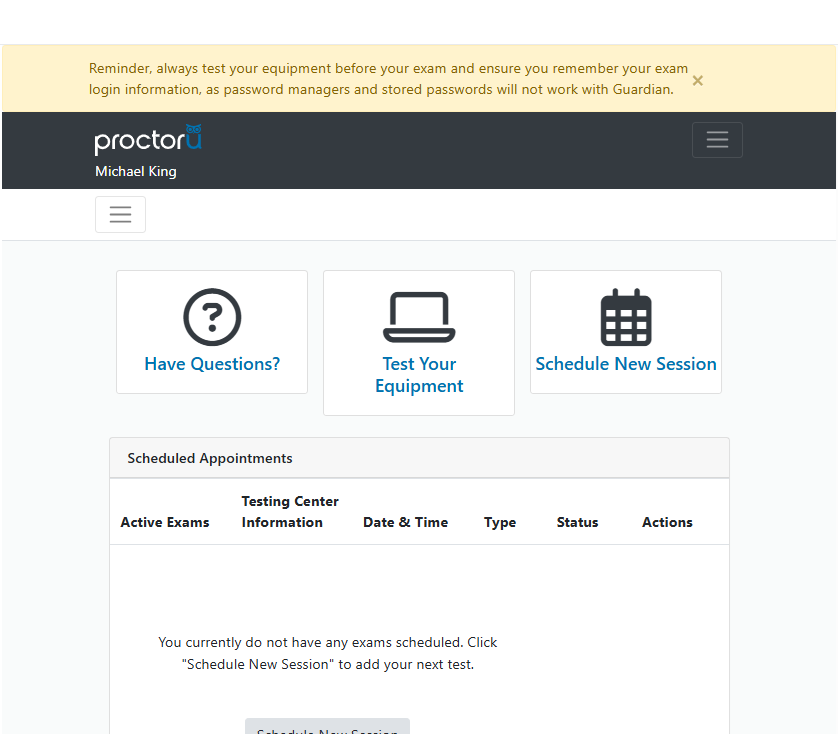
When students click the Schedule New Session and choose the current Term, they will see all proctored exams associated with USM.
We encourage you to have your Canvas quizzes/exams created within the first 10days of the semester. You should have the dates available, the duration and password in place. This will allow you to set up your exams on ProctorU.
You can continue adding questions to your Canvas exams up to the time the exams become available to students.
If you change the dates available, the duration or password, you must resync your exam with ProctorU.
- Click the ProctorU link in your Canvas course.
- Find and click the gear icon to the right of the exam.
- Click Sync Exam Data.
NOTE: No changes should be made to the exam after 2weeks prior to the proctoring dates.
Yes, you can make changes to the exam information you provided on the Go.ProctorU website up to 2weeks prior to the proctoring dates.
Understand, students are charged the normal amount for the duration of exams, unless the student/s wait until the last 24hours to schedule. The student/s are then charged "late" fees.
First you will need to edit your Canvas quiz by adding another +Assign to box to set different dates for student/s.
- Notify Vanessa.McCullum@usm.edu of the student/s and dates allowed.
Next click to access Go.ProctorU website.
- Use your USM email address (lowercase - ex: firstname.lastname@usm.edu.) You will need to create a password for Go.ProctorU.
If you are creating a new window of time a single student:
- Click the name of the exam listed in the table on your Go.ProctorU Home page.
- Click the Exam Options button located in the upper right.
- Click Create Single User Exam if you are opening the test for one student.
- Enter the student's USM email address.
- Enter the allowed dates.
- Click to Submit for Review.
- Click the Exam Options button located in the upper right.
- You'll receive an email message when the it is available for the student to schedule an appointment.
- Note: Only the student whose email you provided will see the option to schedule for the Single User exam under his/her ProctorU dashboard in your Canvas course.
If you are creating a new window of time for multiple students:
- Click the name of the exam listed in the table on your Go.ProctorU Home page.
- Click the Exam Options button located in the upper right.
- Click to Clone this Exam
- Change the name to meet your needs.
- Change the dates.
- Click to Submit for Review
- Click the Exam Options button located in the upper right.
- You'll receive an email message when the exam is available for the students to schedule appointments.
It is possible to allow 2 or more attempts for the same Canvas exam. If you do so, you must notify Vanessa.McCullumFREEMississippi.
For ProctorU, you will need to create a clone of the exam for each attempt you allow.
- Use your USM email address (lowercase - ex: firstname.lastname@usm.edu.) You will need to create a password for Go.ProctorU.
- Click the name of the exam listed in the table on your Go.ProctorU Home page.
- Click the Exam Options button located in the upper right.
- Click to Clone this Exam
- Change the name to meet your needs.
- Change the dates.
- Click to Submit for Review
- You'll receive an email message when the it is available for the students to schedule appointments.
- Click the Exam Options button located in the upper right.
If you have provided your contact information when you created the ProctorU exam, you will receive an email notifying you of any questionable activity by a student.
This email message provides a link to the video and session notes. You will probably be required to log in using your USM email address (lowercase - ex: firstname.lastname@usm.edu.) If you have not done so, you will need to create a password for Go.ProctorU.
You can also log into Go.ProctorU to click the exam listed on your Go.ProctorU homepage.
- Scroll down to the bottom where you will see a list of the students who have either scheduled or taken the exam. The students with the "View" button on the right have video information available.
- Click to View.
When using Canvas quizzes, you can click the ProctorU link in your Canvas course.
- Click the Gear icon on the far right of the name of the proctored exam.
- Click User Reports.
- Here you will find all your students listed. The students who have scheduled appointments will be at the bottom of the list.
- You'll see the student's status and a box icon with an arrow to the right of any student's
name who has scheduled an appointment.
- Click the box with arrow icon to be view the student's proctoring session and recording.
First you must set the Canvas exam to allow the student the Accommodations.
Classic Quiz - Click Quizzes on the course menu. (follow these steps for each Canvas Classic quiz/exam.)
- Click the name of the quiz
- Click Moderate this test.
- Find the student's name in the list to click the pencil icon on the right.
- The pop up will guide you through the steps.
New Quiz - Click Quizzes on the course menu. (Set up once. The accommodations will follow the student through all New Quizzes in the course0
- Click the name of the quiz
- Click Build
- Click the Moderate tab at the top.
- Find the student's name in the list to click the pencil icon on the right.
- The tab pop out will guide you through the steps.
To provide the information to ProctorU, those instructors who are using the Canvas quiz tool, the process to set up accommodations can be found under the ProctorU course link.
- Click the ProctorU course link.
- Allowances can be found under the Configure button. If you need to add accommodations
after the exam has bee configured, you can click the gear icon to the right of the
proctored exam.
- Click Allowances.
- Scroll down to Accommodations and Process Exceptions.
- Click Open Accommodations Form in a New Tab. (A new form will be needed for each student with accommodations)
- Allowances can be found under the Configure button. If you need to add accommodations
after the exam has bee configured, you can click the gear icon to the right of the
proctored exam.
For those who are using a publisher's site tools, and you have created the Go.ProctorU "Exam":
- Ask the student with accommodations to click the ProctorU link in your Canvas course which will create the student's ProctorU account.
- Access Go.ProctorU.
- Click the Test-Takers tab.
- Find the student in the list.
- Click the Edit button to the right.
- Scroll down midway where you will see the Add Accommodation button.
- Click to Update User.
Access Go.ProctorU to click the Support tab.
Our MeasureLearning contact is Latoya Finnery, lfinney@meazurelearning.com.
The Higher Education Resource Hub holds a ton of videos under the Session Investigations and Reporting.